
 Sign In
  Get Premium
 Easyscape Help
Table of Contents
- About Easyscape
- Home
- Search
- Browse
- Plant Pages
- Plantlist
- Design
- My Account
1. About Easyscape
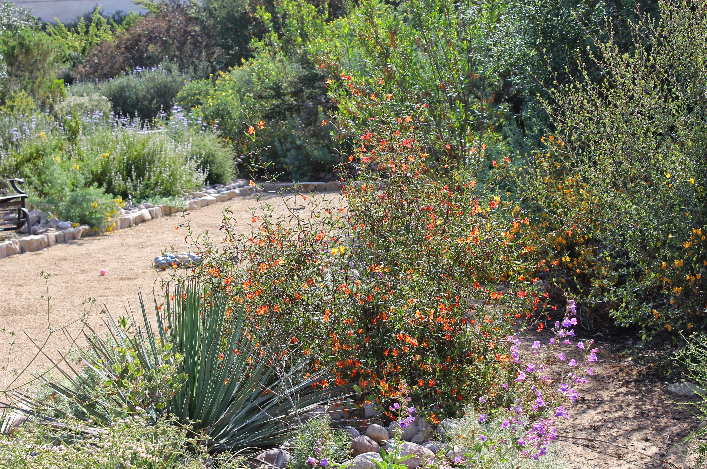
Easyscape is focused on making gardens easy, and especially helping you find and grow the plants best suited to your unique climate, the amount of irrigation you wish to provide, the specific growing conditions of your site, and your other personal preferences.
The site is powered by over 120 million plant observations covering over 13,000 nursery-available plants, and more than 60 billion climate and elevation measurements, covering every square mile of land on Earth. This massive amount of data allows us to make detailed estimates of plant native ranges and their climate and water requirements. We compare plant native ranges and climate requirements to your location to help you easily find your native plants, and the plants that should grow well in your unique climate with different amounts of irrigation.
Native plants are typically the best match for your local environment and are essential for supporting local biodiversity, especially native birds and pollinators. To help you find them, we’ve mapped the estimated native ranges of almost 14,000 nursery-available plants worldwide. Anyone can type in their address and immediately see a list of native plants for their location, then refine results using our advanced search tools.
While we champion native plants, we recognize that most gardens include a mix of native species, non-native low-water plants that thrive with little irrigation, and other non-natives that may need significant supplemental water to survive. So we’ve also added tools to find both native and non-native plants that match your unique climate, and will grow well with whatever amount of irrigation you wish to provide.
Our plant pages provide extensive information about each plant, including interactive native range maps, maps of nurseries carrying the plants, climate suitability for your location, the amount of irrigation we estimate the plant will need at your location, along with plant photos, descriptions and cultivation tips.
Our tools also allow you to easily create personalized plantlists and then transform those lists into a custom garden design.
For more information about Easyscape, including how native range maps are created and how personalized climate suitability and irrigation requirements are determined, see About Easyscape, Easyscape Climate Suitability, and Easyscape Irrigation Requirements.
2. Home

The home page is the easiest starting point to explore Easyscape. Just enter your address or city, click on any location on the map, and choose either the “Native Here” or the “My Climate Matches” options.
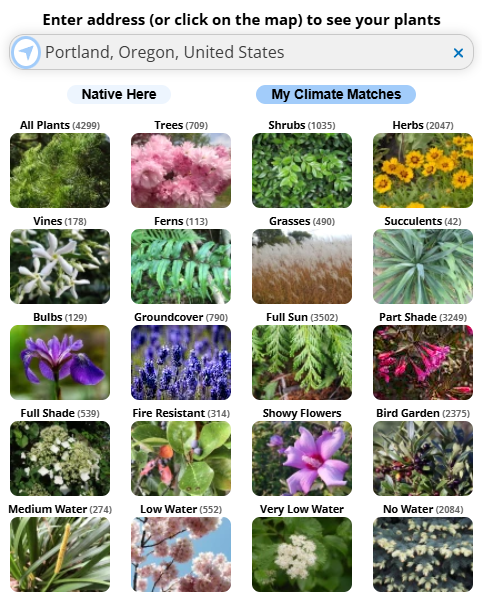
- Native Here - These are plants that are native to the square mile surrounding your address.
- My Climate Matches - These are plants that grow well in the temperature extremes of your exact location, but may need extra water. Note that plants that are frequently invasive outside their native range are not included in these recommendations.
Once you’ve entered your address, the default worldwide results will refresh to show you the more popular plant search categories for your exact location - including plants that require medium, low, very low and no irrigation at your location.
Click on any of the thumbnails to see the plants in those categories in a grid view, 100 per page. And then click on any of the grid view thumbnails to go to the detailed plant pages.
3. Search

To use more detailed filters to find the right plant for your garden, go to the Easyscape search page. Altogether, there are over 60 filters available. On this page you can filter through the 14,000 plants in our database to find the best plants for just about any use, preference or site condition.
As in the home page, from the Search page (shown below) you can easily set your location then select and whether you want to see your native plants, your climate matches, or all plants in our database.
Further filter down your searches by selecting for specific irrigation requirements at your location, availability at nurseries near you, life form (i.e. tree, shrub, etc.), sun requirements, growth rate, leaf retention, height and width, flower color, blooming period and flower showiness, and common uses. Common use filters include categories like groundcover suitability, deer resistance, hedge suitability, edible plants, ease of care, street planting suitability, etc.
Additionally, you can search for plants by name, or filter by plant group (like oaks or quercus).
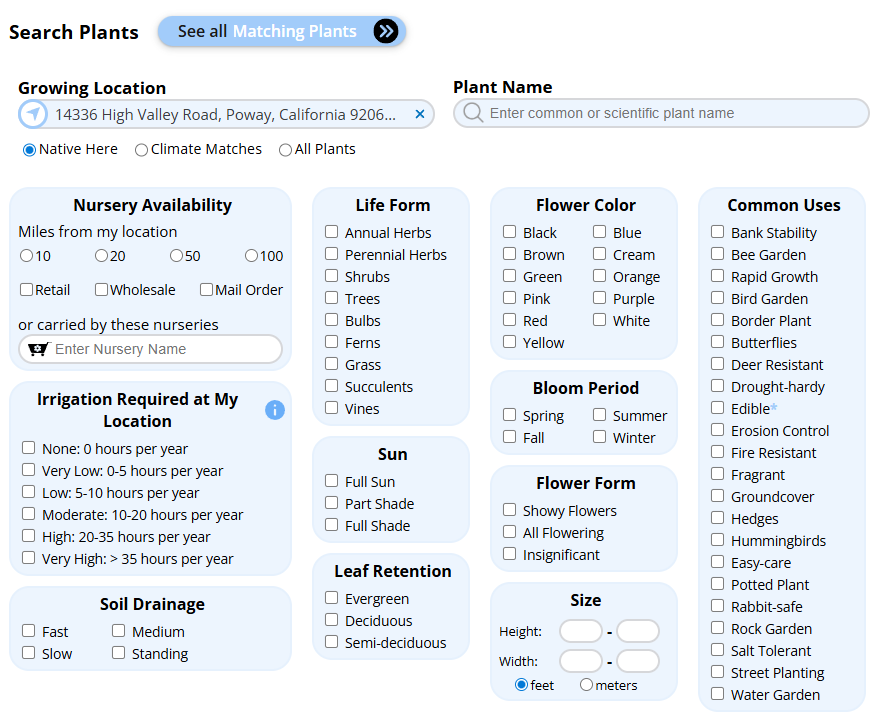
As you are setting your filters, the active filters will appear in the header of the page, and the number of matching results (as illustrated below) …

… and the number of matches will update in the button illustrated below. Just click on the “Matching Plants” button to see your results.

4. Browse

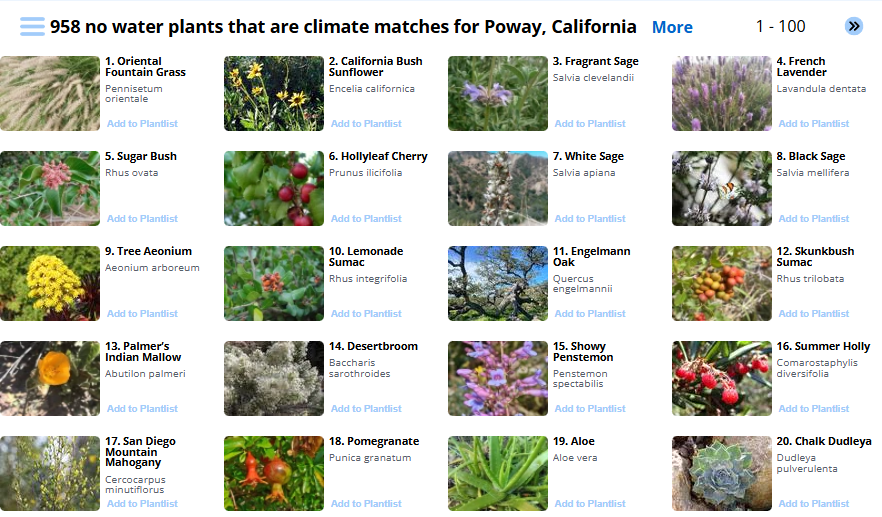
Whether coming from the home page or the search page, your plant results will first appear as a grid of 100 plant thumbnails per page in a “Browse” page (as illustrated below).. By default, plant results will appear in order of most recommended to least recommended. Recommendation rankings are based on climate suitability to your location and overall landscaping popularity.
From the options icon to the left of the title line, you can also sort by species name or common name.
Click on any thumbnail in the grid to view detailed information about that plant. You can also click on “Add to Plantlist” in any plant thumbnail to easily add it to your custom plantlist. For PC users, you’ll see the plant record animate across the page and add to the bottom of the plantlist pane on the right side of the page. Thumbnails for records that have already been added to your plantlist show “added” instead of “add to plantlist”.
3. Plant Pages
The 14,000 Easyscape plant pages on the site show plant photos, an interactive native range map, a link to the nurseries near you carrying the plant, the plant’s climate suitability and irrigation requirements for your location, summary plant information, cultivation tips, common landscaping uses for the plant and more. The top few sections of an example page for “Quercus suber” are pasted below.
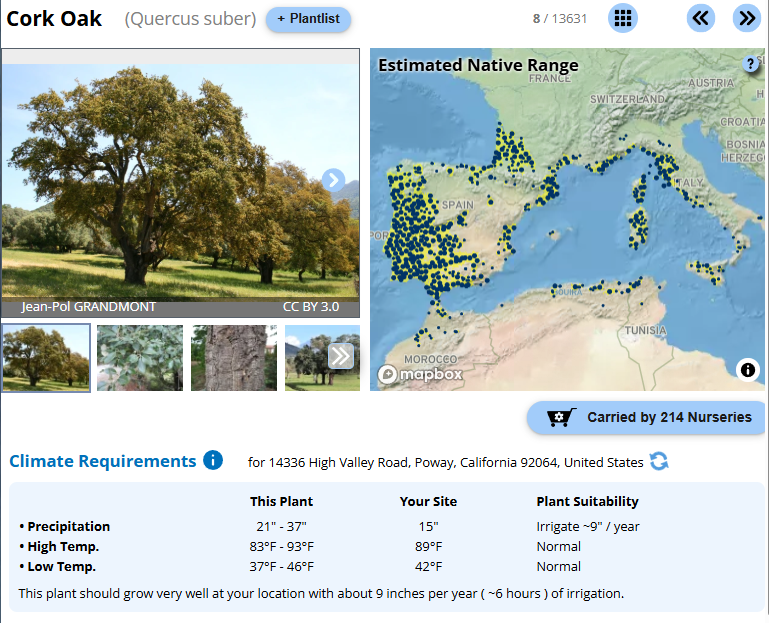
Main elements of the plant pages are shown below:
Top Navigation Line
If you enter an Easyscape plant page from one of the browse pages, you’ll see a title line as illustrated in the example shown above. You can use the << and >> buttons on the plant pages to navigate through your list of recommendations one plant page at a time. You can also click on the 3x3 grid button in the plant page title line (just to the left of the << button) to go back to the highlighted record of that plant in the browse page. The number in the header line shows which plant number you are currently viewing in your total list of recommendations. With these links, it’s easy to review your recommended plants and choose the ones you want to add to your plantlist.
On each plant page, there is an “Add to Plantlist” (or “+ Plantlist” button in mobile view). Clicking on it will add that plant to the active plantlist.
Nursery Coverage
Click on the Nursery button on any plant page (illustrated below) to see the nurseries near you that carry each given plant. In the example shown below, there are 214 nurseries that carry Cork Oak, of which 11 are near the entered address. If you have not already entered an address, you’ll be prompted to do so.
Click on the map locations to see more information about each nursery, including a link to the websites, or click directly on the website links in list view.

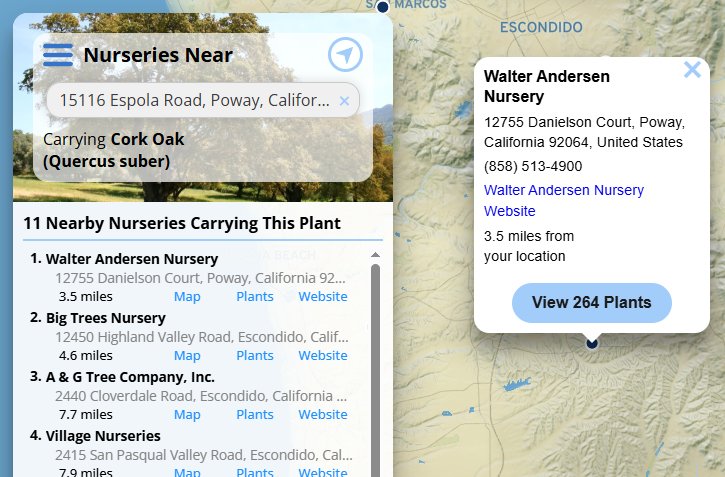
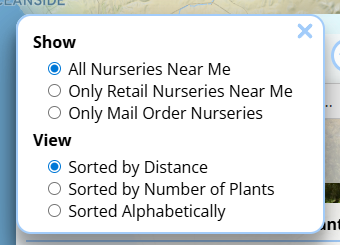
Click on the option hamburger next to the “Nurseries Near” text to select from the options illustrated below. “ All Nurseries Near Me” and “Only Retail Nurseries Near Me” will show matching nurseries within 100 miles of your location that carry your plant. “Only Mail Order Nurseries” will show all mail order nurseries that carry your plant.
Native Range Maps
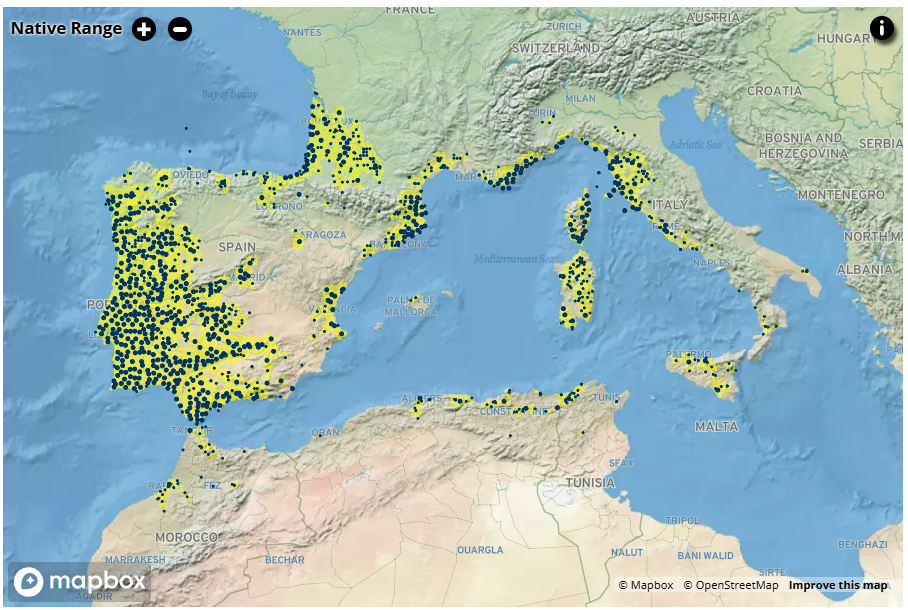
Plant pages include a map showing the estimated native range down to the square mile. These maps are based on over 120 million plant observations from GBIF. We tag each observation as either native or non-native based on multiple sources, including Wikipedia, BONAP, and Kew Gardens. From there, we use temperature, rainfall, and altitude data to estimate the plant's likely native range.
By default, the maps in our plant pages are fast loading static ./html-images/easyscape_help. However, if you click on the map image, it will load an interactive map, which can be panned and zoomed.
- Large blue dots = clusters of native observations (as you zoom in, they’ll explode out to show the individual observations)
- Small Blue dots = individual native observations
- Yellow polygons = estimated native range
See native range map of Cork Oak ( Quercus suber) for example …
Climate Suitability
Easyscape climate suitability shows our best estimates for how well each given plant would grow at your location, and how much irrigation it would need, if any. Once you enter an address, the section looks like the image pasted below in the plant pages.
- Plant precipitation shows our estimate for the normal range of precipitation per year this plant receives in its natural environment, corrected for the climate of your location.
- Plant High Temp shows the normal average high temperature of the hottest month for locations in which this plant has been observed.
- Plant Low temp shows the normal average low temperature of the coldest month of the year for the locations in which this plant has been observed.
Once you enter your location, we compare these plant values to the corresponding climate values of that location. We then estimate how suitable your summer high temperatures and winter low temperatures are for this plant, and how much additional irrigation this plant would require at your location, after correcting for your climate conditions, or more specifically the evapotranspiration rate of your site vs the normal evapotranspiration rate of the plant's native range. (Evapotranspiration is used to describe the combined loss of water to the atmosphere from plants and soil.)
The summary at the bottom of the Climate Suitability section estimates overall how well this plant would grow at your location. If your summer is hotter than the normal range for the plant, or your winter is colder than the normal range for the plant, we warn that this plant might not grow well at your location. If your winters or summers are milder than normal for the plant, we predict that the plant should still grow reasonably well at your location, along with the level of irrigation required to provide the plant with the level of moisture it receives in its natural environment. If your summers and winters are in the normal range for this plant, we predict that the plant should grow very well at your location, again with the level of irrigation required to provide the plant with the level of moisture it receives in its native environment.
When you select “Climate” Matches in the Easyscape home or search pages, we will only return plants that we predict will grow at least reasonably well at your location - and specifically where your winter temperature is not too cold for the plant, and your summer temperature is not too hot for the plant. We show best matches first, where your summer temperatures and winter temperatures are neither hotter nor colder than the normal range for the plant, and where the irrigation required by the plant is “none”,” very low”, or “low” (i.e. < 15” per year).
Overall, we believe it's best to grow plants that are known to grow in areas with summer and winter temperatures that are similar to the conditions in your location. And it's best to provide your plants with the amount of moisture they naturally evolved for (especially with infrequent deep soakings that mimic their natural rainfall patterns). They'll tend to develop deeper roots, and be healthier, more beautiful, and longer lived than if you provide them with the bare minimum irrigation they need to survive. Deeper rooted plants are also more likely to find deeper groundwater, and will often require less or even no irrigation as they mature. So longer term, mimicking nature is often the easiest and most water-efficient strategy, as well as the one that keeps your plants the healthiest.
Please note that our estimates for irrigation required by a plant at your site are baseline estimates. To determine your actual irrigation levels, you'll always need to experiment in your own garden.
For detailed methodology, and tips for how to adjust the baseline irrigation estimates for the conditions at your site, see Easyscape Climate Suitability.
Summary Text
Easyscape summary text is divided into two paragraphs. The first paragraph is a general description of the plant, in most cases including a description of its native range, native habitat, height and width, flower color, blooming period, form and overall appearance. The second paragraph describes cultivation information, including common uses in landscaping application, soil, water and drainage required, and potential problems including any invasiveness concerns.
Most “Summary” sections include Wikipedia content, along with data from many other sources. All text in the Easyscape Summary sections is licensed under CC BY-SA 4.0.
Photos
All photos (including photos by Easyscape) are licensed under Creative Commons or public domain. Thanks to contributors from Wikimedia Commons, Flickr, iNaturalist, PlantNet, Calphotos, and the Atlas of Living Australia. Each image includes credit and a licensing link.
Other Sections
Below the summary description, more detailed plant information is provided in bullet format for easy reference. This includes Plant Description, Growth Requirements, Common Uses, Natural Habitat and Other Names.
4. Plantlists

Click Add to Plantlist from any thumbnail or plant page to save a plant to your custom list. You can view your plantlist from:
- The right-hand pane on the Browse and Design pages
- The full Plant List page
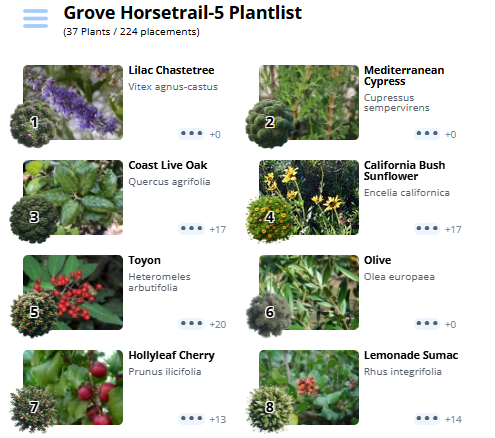
In the Design page, your plantlist becomes the palette for your design.
Plantlist Management Options
From the Plantlist page (or from the plantlist pane on the right side of the browse and design pages for PC users), click the options icon next to your plantlist title to access the plantlist management options:

- New Plantlist – Create a new list with a custom name. All lists are saved to your account.
- Open Saved Plantlist – Access, share, delete, preview, or rename saved lists.
- Sort Plantlist – Sort by popularity, scientific name, or common name; group by type.
- Add Custom Plant – Add a plant not in our database and assign it a custom icon.
- Delete All Plants – Clear all plants but keep the plantlist name.
- Clear Unused Plants – Remove plants not placed in your design.
- Delete Plantlist – Permanently delete the plantlist and any linked design.
- Rename Plantlist – Rename the list (and any linked design).
- Share Plantlist – Generate a shareable link.
- Import Plantlist – Append a saved list to your current one.
- Export to Spreadsheet – Download an Excel file of your plantlist.
Individual Plant Options
Click the three dots next to any plant in your plantlist to access the options applied to each individual plant:
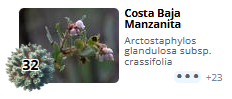
- Go to Plant Page – Visit the detailed plant profile.
- Quick Info – View a pop-up summary of the plant.
- Remove from Plantlist – Delete the plant and all its placements from your design.
- Edit Plant Icon – Change its name, shape, color, or size (applies to all uses).
The number shown next to the three dots shows the number of times you’ve added that plant to your garden design.
5. Design

The Design page helps you easily create a custom garden using your plantlist, as illustrated in the image pasted below. This section will walk you through a step by step process. Before you start creating a design, make sure you’ve created a plantlist.
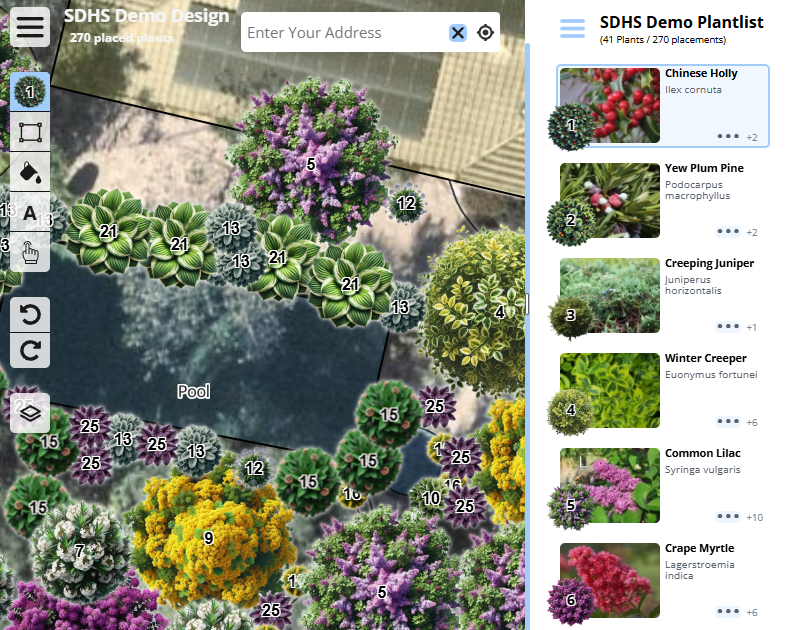
Once you’ve created your plantlist, and are in the design page, the first step is to enter your address in the upper-right corner of the design page. The map will zoom to that address, and show you the satellite view of your location.
After that, you can start creating your design by placing plants and other objects or shapes in the exact location you wish over the satellite view of your gardens. Highlight one of the 5 cursor states shown below (located along the left side of the design page), and then subsequent cursor clicks or taps on the map will add the desired object.
- Add Plants

- Highlight the plant in your plantlist that you wish to add to your design. Then just click/tap the map to place that plant icon where you want it.
- Icons are designed to match the appearance of the plant they are representing for easy reference, but the plant number shown in each icon will also be referenced in your plantlist.
- Icons reflect actual plant width (from <1 foot to 100+ feet) and scale up and down with zoom level.
- Click the number inside a placed plant icon to delete it.
- Drag and drop any plant icon to reposition it.
- WIth each click, the plant counts will update automatically in your plantlist.
- Draw Shapes

- Click the Shape icon and choose Curved Line, Straight Line, Polygon, or Curved Shape.
- Click the map to place vertices. Click the starting point to finish.
- Drag any vertex to adjust while drawing.
- Paint Shapes

- Click the Paint icon and choose a color. Then click anywhere inside the shape to fill it.
- Only the topmost shape will be filled if shapes overlap.
- Add Text

- Highlight the Text icon, then click the map to add a label.
- Select Mode

- Highlight the Finger icon to enter selection mode. Once this cursor state is activated, you can click on any previously added item in your design to edit or delete it.
- Redo Undo


- Allows you to undo or redo plant placements, drawn or painted shapes, or added text.
- Choose Background Map

- Choose from either the default satellite view, street view, or blank background. US, Canada, and Australia users can upgrade to ultra high-resolution aerial imagery for $20/year.
- Lock / Unlock Design

- In mobile mode only, users can use this toggle button to lock their design so it can be panned and zoomed without accidentally dragging and dropping added plants.
Design Management Options. In addition to all the screen buttons described above, there are a number of file management options that are available from the options icon in the upper left corner of the page (to the left of the design title).

- New Design – Start a new design with a new name.
- Open Design – Open, edit, or delete saved designs. (All designs are automatically saved to your account, so you don’t need to manually save them.)
- Background Map – Choose aerial, street, or blank backgrounds. Ultra-high-resolution aerial imagery is available for $20/year.
- Clear Design – Remove all placements and shapes (this will permanently delete your design, but leave your plantlist as it was).
- Delete Design – This will permanently delete your design and plantlist).
- Rename Design – Rename your design and its linked plantlist.
- Share Design – Create a shareable design link.
- Hide Help – Toggle the contextual design tips on or off.
6. My Account

Click the My Account icon in the top-right corner of any page to sign in or create an account. Once signed in, your plantlists and designs are saved automatically and accessible from any device.
Your privacy is important. Easyscape does not share your information with third parties. Cookies are only used for functionality. See our Privacy Policy for full details.
If you purchase a map upgrade, it is valid for one year. Your current upgrade status and expiration date can be viewed via the My Account menu. Upgrades are not auto-renewed but can be easily repurchased.